This method of joining track may be used where the endpoints of the two tracks to be joined are on the same horizontal (X) or vertical (Y) axis.
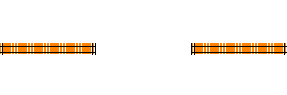
Start the join process by clicking on the Join button ( ).
).
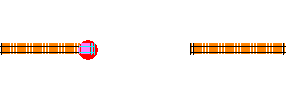
Left-Click the endpoint of one of the two tracks being joined. A red dot will appear as a reminder of which track has been selected.
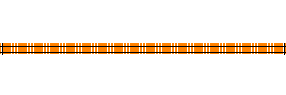
Move the mouse pointer over the endpoint of the other track then Left-Click. A track connecting the two endpoints will appear.
When this command is used to join;
- two flex-track endpoints, one long section of flex-track without joints will result.
- two sectional track endpoints, a section of flex-track will be created between and used to join the two sectional track endpoints.
- one flex-track endpoint with one sectional track endpoint, the section of flex-track will be extended and joined with the sectional track endpoint.
Any tracks created during the Join command will have the following properties inherited from the first track: selected state, hidden state, scale, track gauge and Layer.
Turnouts and Sectional (Hot Bar) tracks can be joined to other tracks. XTrackCAD extends the selected endpoint with a straight track when making the connection.
A Turntable (Turntables) can be joined however it must be used as the second endpoint for normal easements but can be connected to either end with Cornu.
For detail about;
- Using curved flex-track to join track segments refer to Join with Cornu Easement.
- Moving one segment of track to join with another refer to By Moving Track.