View Menu
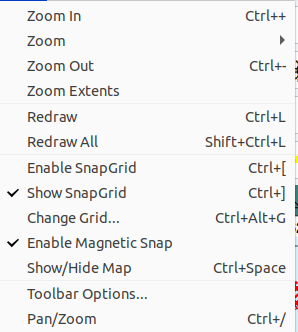
The View Menu shows commands affecting the display of the Main Canvas (Main Window Overview).
- Change Grid - Displays the Snap Grid dialog. The Snap Grid forces the cursor (for some commands) to be on a grid to control track placement.
- Enable SnapGrid - Enables (or disables) the Snap Grid (Grid Dialog).
- Redraw - Redraws the Main Canvas.
- Redraw All - Redraws the Main Canvas and the Map Window (Map Window).
- Show Snap-Grid - Toggles display of the Snap Grid on and off.
- Magnetic Snap On/Off - Toggles Magnetic Snap (Magnetic Snap) for Add Operations on and off. The magnets make tracks auto-align and shapes touch when the cursor or object is close. They can be defeated on each operation by holding down Alt. If the Magnets are off, holding down Alt will enable them.
 Show/Hide Map - Toggles display of the Map Window on and off.
- Toolbar Options - Command button groups displayed on the Toolbar are selected using the Toolbar Options Dialog (Toolbar Options).
- Pan/Zoom - move or resize the viewport using the mouse (Pan/Zoom).
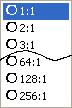
- Zoom - This sub-menu is used to select a specific drawing scale ratio for the Main Canvas.
- Zoom In - Increases magnification of the Main Canvas.
- Zoom Out - Decreases magnification of the Main Canvas.
When zooming in or out, the corresponding highlighted area of the Map Window (Map Window) changes size to match that which appears on the Main Canvas (Main Window Overview).