This dialog is used to manage your list of cars and locomotives.
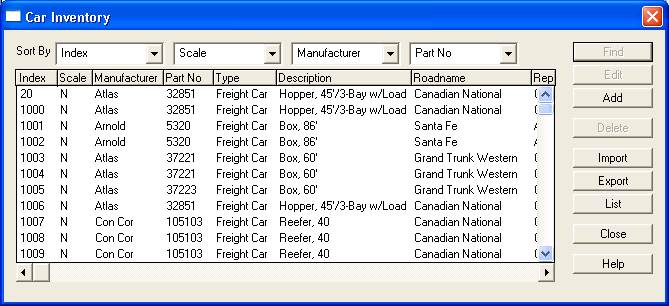
The main part of this dialog contains a detailed list of each car and locomotive in your inventory. The list can be sorted on different columns by selecting column names in the Sort Drop Down Lists along the top of the dialog. The width of the columns can be adjusted by Left+Drag on the lines between the column titles.
Cars are placed on the layout by using the Train Simulation (Train Mode) command.
The Find button will center the Main Window (Main Window Overview) on the selected car. This button is only enabled for cars which are on the Layout (indicated by co-ordinates in the Location column). If the car on a track that is hidden and Trains on Hidden Track (Display Dialog) is set to Hide, then the car (and any attached cars) will be made visible.
The Edit button invokes the Car dialog (Car Item Dialog) to modify the selected car. This button is disabled if more than one (or no) car is selected or if the selected car is on the Layout.
The Add button is to add a new Car. Refer to Unable to Add Cars to Inventory! if an error occurs when attempting to add inventory to this list.
The Delete|Shelve button serves two functions: If all selected cars are on the layout then this button shows Shelve and it moves them from the layout and returns them to the Shelf. If all selected cars are on the Shelf then this button shows Delete and they will be deleted from the Inventory. Otherwise, the button is blank and disabled.
The Import and Export buttons read and write a Comma-Separated-Value (CSV) file. This file format can be read and written by many applications. It can be used to transfer car inventory data between different applications. This file contains the following columns (the first four are required when Importing):
- Scale - example: HO, HOn3, N, O etc
- Manufacturer and Partno
- Prototype - example: GP40
- Index - an unique numeric identifier (optional)
- Roadname, Repmark and Number - example: Burlington Northern, BN, 1234
- Type - enter one of the following:
- 10101(Diesel),
- 10201(Steam),
- 10301(Electric),
- 30100(Freight),
- 50100(Passenger),
- 70100(M-O-W) or;
- 90100(Other)
- Options - bit map of
- 0x0001 - Body Mounted Couplers
- 0x0002 - Locomotive
- Other bits can be ignored
- CarLength, CarWidth, CoupledLength, Truch Center Offset and TruckCenter - car dimensions in inches
- Color - encoded as (Red * 65536 + Green * 256 + Blue)
- PurchPrice, CurrPrice, PurchDate and ServiceDate - numeric values - dates are in the form yyyymmdd, where yyyy is the year, mm the month, dd the day
- Condition - enter one of the following:
- 100(Mint),
- 80(Excellent),
- 60(Good),
- 40(Fair),
- 20(Poor) or;
- 0(N/A)
- Notes - free form text
The List button creates a text file listing your inventory.