Creating a curve is a two step operation. You will select a point and then Left-Drag to specify the control point depending on the drawing method.
A drop-down menu, which allows selection of the Curved Track creation method, is invoked from the down arrow button located on the right side the Curved track button.

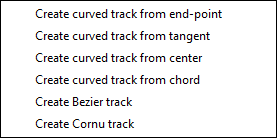
- Curved Track Button Menu
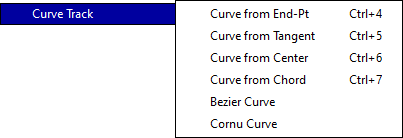
The six methods (with their Shortcut keys) used to create a Curved Track are:
 Curved Track from End Point Control+4 - Drag out the end and then set its radius by dragging the endpoint.
 Curved track from Tangent Control+5 - Drag from the an endpoint to the center and then drag the second enpoint around that center.
 Curved Track From Center Control+6 - Drag from the Center of the Curved track to one of the endpoints. Position the second endpoint around the center.
 Curved Track from Chord Control+7 - Drag from one endpoint to the other endpoint to form the Chord of the Curve. Drag the arc out to form the Curve.
 Curved Bezier Track - Construct a Bezier Track by placing its four control points.
 Create Cornu Track - Construct a Cornu Track curve by selecting the end points and dragging to set the curve values.
For the first four curve mthods, two Red arrow heads will be drawn after the first step to indicate where you can Left-Drag to complete the second step.
A straight track will be created if the second endpoint is lined up with the first endpoint except for Bezier and Cornu tracks.
The radius of the curve is designed to be in 1/8" increments unless the desired radius field is set non-zero and the radius drawn is close to that value, in which case the radius will snap to that value.
If the Snap Grid (Grid Dialog) is enabled then the endpoints will be constrained to the grid if they are not snapped to another object. Shift ensures that other objects will be ignored.
Optionally, the curve center point and radius can be displayed for the Curve. This is enabled by the Move Label (Move Description) command.
For Beziers and Cornus, the active control point will be drawn in red and the available endpoints are shown with circles.
Note: You can also create Straight and Curved tracks using Modify by Left-Dragging out extra track from an open end-point.