The Demos menu item, under the Help (Help Menu) menu, shows a cascading menu of choices to demonstrate various features and commands.
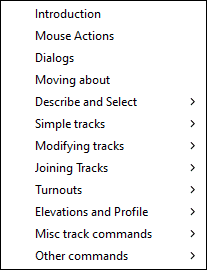
In demonstration mode XTrackCAD is driven by a script file (such as created by the Record (Macro Menu) command). The cursor is simulated on the Main Window (Main Window Overview) and the XTrackCAD windows (except the Demo window) are inactive. Also, simulated input on dialogs is indicated by a border momentarily drawn around the control.
The Demo dialog is displayed which contains a number of control buttons and a text area that shows comments on the demonstration being run.
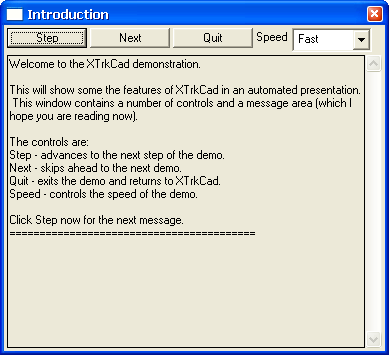
- Next - skip to the next demonstration. If you hold down the Shift key then you will jump back to the previous demonstration.
- Quit - quit demonstration mode.
- Speed - controls the speed of the demonstration.
- Step - advance to the next step of the current demonstration.
The state of the layout is saved when running demonstrations.
A number of options and controls (such as scale) are changed while running demonstrations. These will be restored when the demonstration is finished.
You can adjust Window sizes and positions while the demonstration is running to better see what is happening.