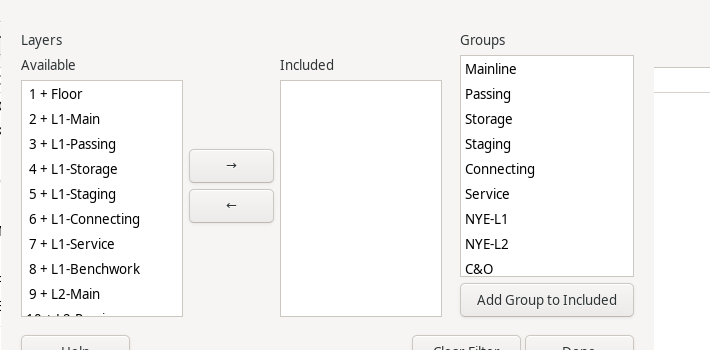
The Filter Layers/Groups dialog scopes a report down to specific Layers and/or Layer Groups (Layer Groups Dialog) – one dialog shared by every report on the Reports menu (Reports Menu), opened by that report's own Filter... button. Each report keeps its own, independent scope; changing one report's filter has no effect on any other.
The Layers shuttle has two lists, Available and Included. Every named Layer appears in exactly one of the two: Included if it's currently in scope for the report, Available otherwise. By default every layer starts in Available – an unfiltered report, covering the whole layout, exactly like before this dialog existed. Select one or more layers in either list (click, or Ctrl/Shift+click for several) and use the arrow buttons between the lists to move them: the right arrow includes the selected Available layers, the left arrow removes the selected Included layers, restoring them to Available. As soon as Included is empty again, the report goes back to covering every layer.
The Groups list on the right shows every defined Layer Group (Layer Groups Dialog). Select one or more and click Add Group to Included to move every one of their current members into Included in a single click – a one-time snapshot of that group's membership, not a live link: editing the group's membership afterward has no effect on a filter already built from it, and the same layer can be included both directly and by an included group's membership with no difference in outcome. Each layer's row is still independently movable afterward, so you can include a whole group and then remove one of its layers, or start from a group and add a few more layers by hand.
The Clear Filter button moves every layer back to Available in one click, restoring the unfiltered ("show every layer") state without shuttling each one back individually.
Filter changes take effect the next time the report's own Refresh button is clicked – the same way every other report change (editing track, changing a layer) already requires a Refresh to show up.
The Done button closes the Filter Layers/Groups dialog.