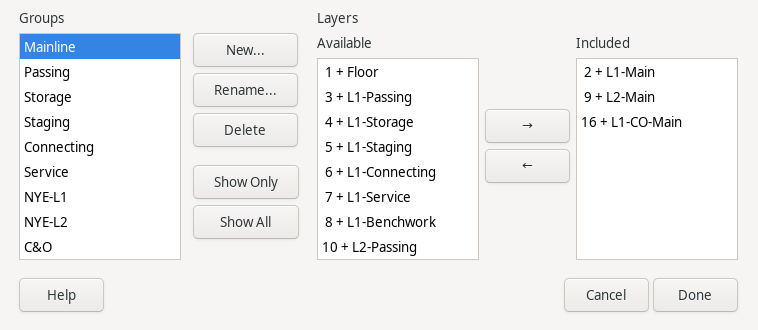
A Layer Group is a named collection of Layers (Layers Dialog). A Layer can belong to any, all, or none of the Layer Groups you define – membership in one group has no effect on membership in any other. Groups are meant for acting on a meaningful subset of layers at once, for example every layer belonging to one level of a multi-level layout, or every layer that represents staging track regardless of level.
The Layer Groups dialog has two parts. The Groups list on the left shows every defined group; select one to work with it. The New... button creates a new, empty group after asking for its name. The Rename... button changes the selected group's name. A group name must be unique – New.../Rename... reject a name already used by another group, since every Groups list in the app identifies a group by its displayed name. The Delete button removes the selected group entirely (its member Layers are unaffected – only the group itself goes away).
The Show Only button hides every Layer except the selected group's members, a quick way to isolate one group's content on the Main Window (Main Window Overview) without toggling each layer's visibility by hand; the current layer always stays visible even if it isn't a member of the group, matching the usual rule that the current layer can't be hidden. The Show All button undoes this, restoring every layer to whatever visibility it really had before Show Only was used – not necessarily all visible, if you'd deliberately hidden a layer beforehand. Show Only/Show All are a temporary view filter, not a real change to the layout: the filtered view is never saved to the file, so you don't need to remember to click Show All before saving or closing, and reopening a saved file never comes back with layers still filtered down. Manually changing an individual layer's visibility (its Layer Button on the toolbar, or the Canvas check-box on the Layers dialog's View tab, Layers Dialog) while a Show Only filter is active is a real change and is remembered/saved as usual, even after the filter is later cleared.
The right-hand side shows the selected group's membership as two lists, Available and Included. Every named Layer appears in exactly one of the two: Included if it's currently a member of the selected group, Available otherwise. Select one or more layers in either list (click, or Ctrl/Shift+click for several) and use the arrow buttons between the lists to move them: the right arrow adds the selected Available layers to the group, the left arrow removes the selected Included layers from it.
If your layout file has layers using the older Linked Layers field (see the Layers dialog, Layers Dialog), opening that file automatically converts each layer's link list into a new, automatically-named group the first time the file is loaded – the older field is retired once converted.