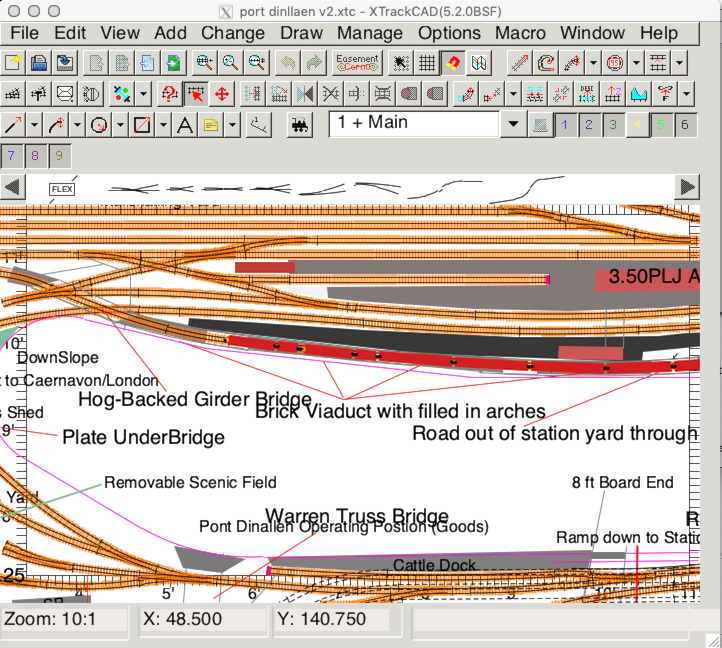
When XTrackCAD starts, it displays the Main (Main Window Overview) and Map (Map Window) windows. The Map window is used to change the origin of the Main window when the entire layout cannot be displayed at one time.
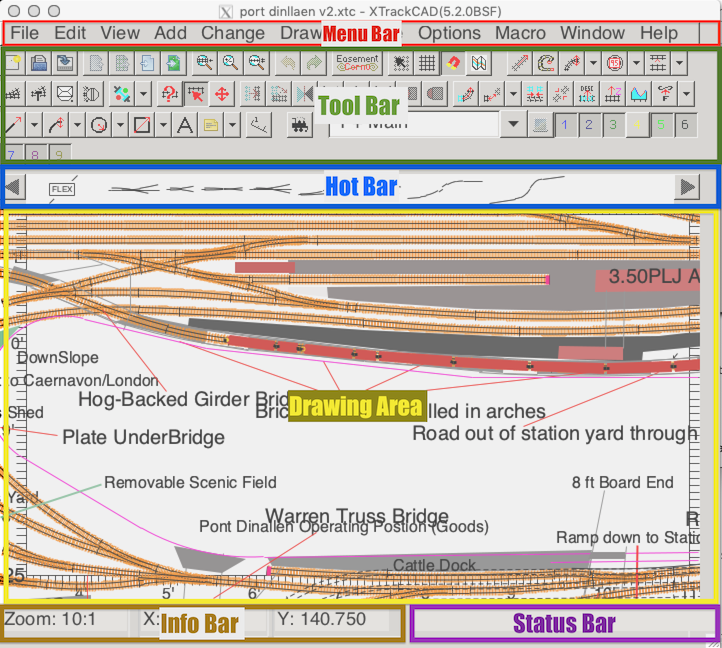
The Menu Bar across the top of the Main window contains standard Windows menus. Some of these are particularly useful to the new user:
- The File>Exit menu exits XTrackCAD. You can also exit by selecting the System menu in the upper left corner of the Window.
- The File>Open menu opens existing layout files and archives. When first installed, the default directory contains some example programs you can look at.
- The Help menu can be used to read the XTrackCAD Help file. Also, the Help>Demos menu selects a number of demonstrations which illustrate various features of XTrackCAD.
- The Options>Layout menu specifies the working scale and overall room size.
- The Options>Preferences menu specifies some less frequently changed items. You can use this menu to choose Metric units (Preferences Dialog).
The Tool Bar contains icons for each of the commands in the Menus. The icons shown can be customized using the View->ToolBar submenu.
- The main drawing Mode command is Select - which is shown with the red arrow icon. From this mode, selected objects can be Modified as well. A close second is the Property mode which allows properties of Objects to be seen and Changed.
- A different mode is Train which allows trains to be simulated on the Layout.
Under the Tool Bar is the Hot Bar. This contains defined track and drawing objects taken from parameter files. To use a template you select it and then click on the Drawing Area.
The main part of the window is the Drawing Area, this is where the Layout is shown in 2D. The view can be zoomed or panned. The Pan-Zoom command whise symbol is the crossed arrows allows easiest control, but in Select command you can pan with the arrow keys and zoom with the trackpad or mousewheel or Ctrl+"+" or "-" can affect the zoom level.
At the bottom on the screen are two more areas. The Status Bar contains messages about commands as they are being used, and the Info Bar shows the zoom level and the position of the cursor.