Each object is contained in a layer - which is a custom group of objects that do not have a particular visual order, but can be treated as a set for certain commands. Objects which are created independently of other objects (such as straight tracks (Straight Track) or text (Text)) are created in the current layer. Objects which are associated with other objects (such as tracks created by the Modify (Modify) or Join (Join Tracks and Lines) commands) are created in the same layer as the associated object(s).
The Layers dialog allows you to change various attributes of each of the 99 possible layers. Its settings are split across three tabs – View, Track, and Layers – described below.
Attributes associated with a layout are stored within the associated layout file and apply only to the layout that's open at the time of a change. It is possible to apply attributes from one layout file to another using the Load and Save buttons at the bottom of the dialog.
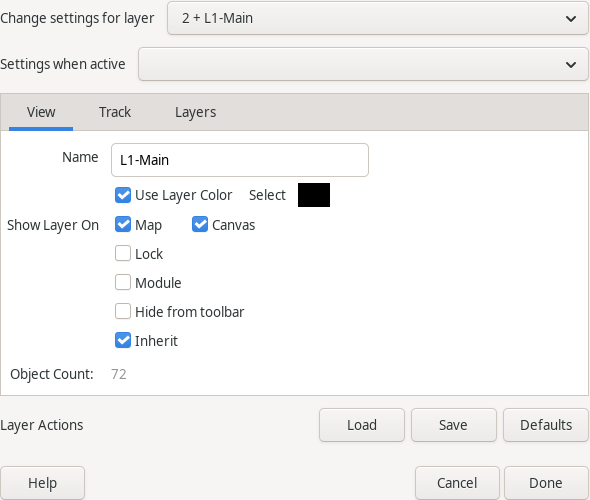
The Change settings for layer drop down list at the top of the dialog selects the Layer you are editing. Frozen (Locked) layers are preceded by a \*, Module layers by an m, non-empty layers by a + and empty layers by a -.
The Settings when active drop down, also always visible above the tabs, specifies a settings (.xset) filename in the XTrackCAD working directory that is loaded when this layer is made current. Only the values contained in the file will be set. If this name is blank the default values (all those in use when any layer with no settings file was last used) will be reloaded (or retained). The drop down lists all .xset files in that directory.
View tab
The Name edit box contains the name of the Layer. This name is listed in the Current Layer drop down list on the Tool-bar (Main Window Overview). Also the Name is displayed as the balloon help for the corresponding Layer Button.
The Use Layer Color check-box, together with its Select color button, specifies the color of tracks if either of the two Color Layers (Display Dialog) radio buttons on the Display dialog is checked.
Show Layer On has two check-boxes: Map controls whether the Layer is drawn on the Map (Map Window) window, and Canvas controls whether it's drawn on the Main (Main Window Overview) window.
The Lock check-box indicates that tracks in that Layer can not be modified or deleted.
The Module check-box controls whether the Layer is selected/deselected and so moved or rotated as a group - this can be used to denote a track module in a modular layout - allowing the modules to be positioned as units. Objects in a Module Layer can not be individually modified. One way of getting a modules in is to build a library with Export and then Import As Module - this creates one layer per module, names it and sets the Module check-box.
The Hide from toolbar check-box selects if the Layer has a button to hide/show it. You may choose not to have a button if the layer is empty or if it is a sub-layer controlled by another layer.
The Inherit check-box controls whether this layer uses the layout's own Scale, Gauge, Min Track Radius, Max Track Grade and tie dimensions (checked, the default) or the layer-specific overrides set on the Track tab (unchecked).
The Object Count field displays the number of objects in the selected Layer.
You cannot uncheck Canvas or check Lock for the Current Layer.
Track tab
These fields only take effect when this layer's Inherit check-box (View tab) is unchecked; otherwise the layer uses the layout's own values and these fields are ignored.
Scale and Gauge set this layer's own modeling scale and gauge, independent of the rest of the layout – useful for a layer holding equipment or track of a different scale (a display shelf, a different-gauge branch, and similar).
Min. Track Radius and Max Track Grade (%) set this layer's own curve-radius and grade limits, used the same way as the layout-wide values (Change Scale) they override.
Tie Length, Width and Spacing set this layer's own default tie dimensions for newly-drawn track.
Layers tab
The Actions group has three buttons: Add Layer creates a new layer, Delete Layer removes the selected layer, and Default Values resets the selected layer's settings (all tabs) to XTrackCAD's defaults.
The Groups field shows which Layer Group(s) (Layer Groups Dialog) the selected layer currently belongs to, as a comma-separated list, or (none) if it isn't a member of any – a read-only display; add or remove a layer's group membership from the Layer Groups dialog itself. This field used to be an editable Linked Layers text box (a semi-colon-delimited set of layer numbers shown/hidden together with this one); that older mechanism is automatically converted into a Layer Group the first time a file that still uses it is opened, and this field then shows the resulting group membership instead.
Settings for all Layers
These three buttons, at the bottom of the dialog below all three tabs, apply to every layer at once, not just the one selected above:
The Save button stores every layer's attributes in the xtrkcad.ini file so they may be loaded into an existing or new file. Once saved and unless reset to XTrackCAD Default, modified layer information is applied to each new file.
The Load button reads layer attributes from the xtrkcad.ini file then applies it to each layer of the current layout file.
The Defaults button restores every layer's attributes to default XTrackCAD settings.

The Layer Buttons on the Tool-bar (Main Window Overview) control which layer is the current Layer and which Layers are displayed on the Main Canvas. These buttons are a short cut for the Canvas check-box (View tab) on the Layers dialog for the corresponding layer.
The current layer is selected by picking a value from the drop down layer list. If the Layer you've selected was not visible, it will be shown.
You can hide (or show if not visible) the different layers by pushing one of the Layer Buttons on the Toolbar (if you have configured the toolbar (Toolbar Options) to show the Layer buttons). If a layer is not visible then the corresponding layer button will be raised. The active or current layer cannot be hidden.
The color of each layer button shows the color that will be used to draw tracks or draw objects in that layer, if you have selected the Color Layers (Display Dialog) on the Display dialog. The Use Layer Color check-box (View tab) allows this layer to opt in or out - which can be usefu if you want to color other layers but a layer contains pre-colored objects (like Structures or Scenery).
Any selected objects are unselected when the Layer is set to not visible. If a layer is not visible, you cannot select objects in the Layer. It is as if the objects do not exist until you show the layer again.
The Move To Current Layer command on Edit menu (Edit Menu) will move all selected (Select) tracks to the current Layer.
Objects are drawn on the map window, if the Layer they are on has Map (View tab, under Show Layer On) checked.