Dividing a section of flex-track into two connected pieces;
Click the Split Track button ( ) to activate the Split Track command.
Place the mouse pointer over the point on the track where the it should be divided. A blue anchor bar across the track under the cursor will indicate the current split point. Then Left-Click.
To divide a Turnout, Shift must be held. The result will be a shorter Turnout with plain track replacing the rest of it. Note that the program will not stop division of the turnout between the switch blades and the frog - which would not be desireable in the real world.
- When the Split Track command completes, a connected joint will appear in the track at the point of selection. To split and disconnect at a point, execute the Split track command twice. The first command will split the track, the second command will disconnect it.
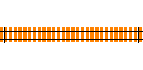
- Track prior to split
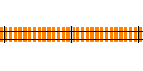
- Track following split
It's not possible to create a track shorter than the Minimum Track Length (Preferences Dialog).
This command is useful for placing tunnel portals or elevation points (Elevation) at specific track locations.
Normally a turnout cannot be split however, if the Shift key is held when executing this command then the turnout can be trimmed. Trimming replaces the portion of track between the split point and the turnouts endpoint with flex-track. For turnouts with more than one set of points (XTrackCAD Terms), such as a slip switch or scissors crossover, a trim point cannot be selected between the points of the turnout.
For detail about;
- Disconnecting the joint between two sections of track see Disconnect Joint.
- Creating block gaps at an existing joint see Adding Block Gaps.