The Unconnected Endpoints Report command lists every track endpoint in the entire layout that is not connected to another track – one row per open endpoint, giving its Track id, the layer it's on (Layer #/Layer Name), its X/Y position, Angle, and whether it's Nearby another open endpoint. The layer number matches the main window's own layer buttons and layer selector (both 1-based) – useful for finding the right physical level to look at on a multi-level layout.
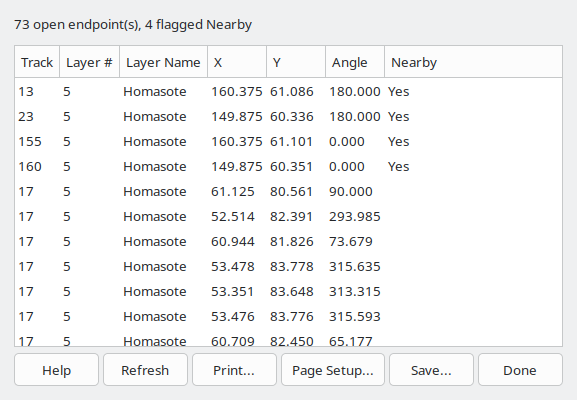
A summary line above the list gives the total count of open endpoints and how many are flagged Nearby, updated whenever the report is generated or refreshed.
Unlike the Parts List (Parts List) command, this report always covers the whole layout; it does not consider the current selection (Select).
A track with more than two endpoints (for example a turntable) can contribute more than one row to the report – one row per unconnected endpoint on that track, not one row per track.
The Nearby column flags an endpoint when another open endpoint, on a different track, lies within the layout's Connection Distance preference (Options > Preferences Dialog) – the same distance the editor itself uses to decide whether two endpoints are close enough to connect. A flagged pair usually means a missed connection rather than a deliberate dead end. Flagged rows are listed first, grouped together; every row stays in the list either way, nothing is filtered out.
Selecting a row in the list pans the Main Canvas (Main Window Overview) to that endpoint's position and draws a temporary open-circle indicator there, so you can quickly find any listed endpoint on the layout. The indicator is purely visual – it's never saved with the layout and disappears as soon as the report window closes. Its color can be changed on the Colors (Colors Dialog) dialog, under Report Indicator.
The Refresh button recomputes the report in place – useful after fixing a flagged endpoint elsewhere in the layout, without closing and reopening the report window.
The Save As... button opens a File Save dialog window that's used to name and save the report to a text file.
The Print button opens the Print dialog which is used to print the report.
The Filter... button (Filter Layers/Groups) opens a dialog to scope this report to specific Layers/Groups (Layer Groups Dialog) – every layer is included by default.
The Done button closes the Unconnected Endpoints Report window.