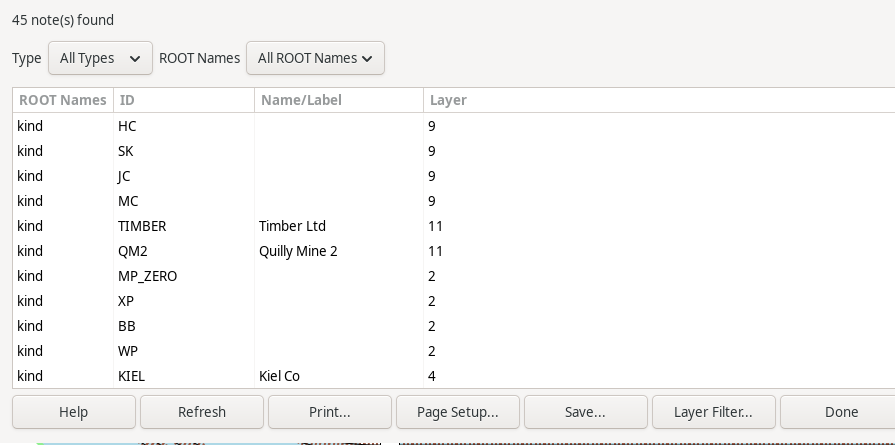
The Notes Report command lists every note on the layout. Each row's ROOT Names column shows either the note's Type (Text, Weblink, or Document) or, for a note created via the JSON Note command (JSON Note), whichever of its own ROOT-level field names – the Name half of a Name:Value pair added via the JSON Note dialog's structured field editor – matches a name registered in Manage Notes. A JSON Note groups by which field name it uses, not by the value of any particular field, so a note with a "spots" field groups under spots once that name is registered, whether or not the note has any other recognized field at all. Any JSON Note matching no registered name shows ROOT instead – every JSON Note, until at least one name has been registered. ID is the JSON body's "id" field (empty for a non-JSON note), Name/Label is its "name" or "label" field, whichever is present (empty if neither is), and Layer is the note's layer.
A summary line above the list gives the number of notes found, updated whenever the report is generated or refreshed.
The Type dropdown restricts the report to one note type at a time – Text, Weblink, Document, or JSON ("All Types" is the default, unfiltered view). The ROOT Names dropdown independently restricts the report to one registered name at a time ("All ROOT Names" is the default, unfiltered view); it only applies to JSON Notes matching a name registered via Manage Notes, so combining a Type filter of Text/Weblink/Document with a specific ROOT Names selection produces an empty list. Changing either dropdown re-runs the report with the new scope immediately, no Refresh click needed – unlike the Layer Filter... button below, which still needs an explicit Refresh after closing its own dialog.
Selecting a row pans the Main Canvas (Main Window Overview) to that note's position and draws a temporary open-circle indicator there, the same way the Gaps (Gaps Report) and Kinked Joints (Kinked Joints Report) reports do. The indicator is purely visual – it's never saved with the layout and disappears as soon as the report window closes.
The Refresh button recomputes the report in place – useful after editing a note's JSON body elsewhere in the layout, without closing and reopening the report window.
The Save As... button opens a File Save dialog window that's used to name and save the report to a text file. Unlike the on-screen list, the saved text also includes each JSON Note's full JSON body, indented on its own line under that note's row.
The Print button opens the Print dialog which is used to print the report – the same JSON body text included in a saved file is also printed.
The Layer Filter... button (Filter Layers/Groups) opens a dialog to scope this report to specific Layers/Groups (Layer Groups Dialog) – every layer is included by default. This is a separate scope from the Type and ROOT Names dropdowns above, which filter by note content rather than layer.
The Done button closes the Notes Report window.