File Menu
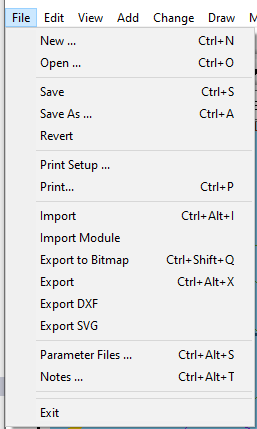
The File Menu shows file oriented commands for loading and saving layout files. File Types The main two filetypes that XTrackCAD uses are normal Layout Files (*.xtc) and Archive Files (*.xtce). The internals of both formats are described in the XtrkCAD Wiki at Wiki FileFormats.
Layout File The layout file is named with a *.xtc extenstion and is a text-based description file of all the objects used in the layout plus some information about the options currently in use. Archive An archive is named with a *.xtce extension, is a zipped collection of -
- a manifest JSON file that lists the contents,
- the .xtc layout file, and
- any other content listed in the manifest -> such as referenced image files. Initially the only such content is the background image which is added to the archive if it is present.
- Exit - Exits XTrackCAD. You will be asked to confirm your choice if there are unsaved changes.
 Export - Exports objects to a file in XTrackCAD (*.xti) format. If no objects are selected, all objects in visible layers are exported. If objects are selected they are exported. The exported file can then be imported into another layout design. Refer to the Import command listed below.
 Export to Bitmap - Creates a bitmap file (Export to Bitmap) of the layout. The bitmap can be saved in either JPEG or PNG format.
 Export to DXF - Exports objects to a file in DXF format (XTrackCAD Terms): the current selection (Select), or the scope set on the Filter Layers/Groups for Print/Export (Filter Layers/Groups for Print/Export) dialog if one is active. The exported file can then be imported into other CAD programs.
 Export to SVG - Exports objects to a file in SVG format: the current selection (Select) if any, otherwise every visible object – or the scope set on the Filter Layers/Groups for Print/Export (Filter Layers/Groups for Print/Export) dialog if one is active. The exported file can then be imported into a vector drawing program like Inkscape or used for publishing on the web.
- Filter Layers/Groups for Print/Export - opens the Filter Layers/Groups for Print/Export dialog to scope Print (Printing) and Export to DXF/SVG to specific Layers or Layer Groups (Layer Groups Dialog).
 Import - Displays the file selection dialog which allows selection of an existing XTrackCAD Import (Export *.xti) files. This function can be used to transfer parts like a yard design from one layout design to another.
 Import Module - Displays the file selection dialog which allows selection of an existing XTrackCAD Import (Export *.xti) file. The imported parts are put into a empty layer, sets the layer name to the imported filename and sets the layer to be a module - see (Layers Dialog).
 Import DXF - Displays a dialog which allows selection of options for (Import Dxf File *.dxf) file. The "Layer 0 Track" option will create track from lines (STRAIGHT) and arcs (CURVE) in DXF layer 0. The DXF file is converted to an XTI file in the same folder as the DXF file. If "Import XTI" is slected, the XTI will be imported into the layout. if "Import Module" is selected it will be imported into an empty layer as a module - see (Layers Dialog).
- File List - List of the five most recently used XTrackCAD files or archives.
 New - Clears the current layout. In case there are any unsaved changes on the current plan, a warning pop-up will be displayed and you'll have the option to cancel the operation. After that the Layout Options (Layout Dialog) dialog will be opened.
- Notes - Displays a simple notepad editor which you can use to enter information about the layout. Typically this could include prototype, period, theme, layout style, height, construction, type of track and turnouts used, control system and anything else of interest. (There is also a Note command (Note Variants) which allows attaching notes to particular parts of the layout.)
 Open - Displays the File Open dialog which allows an existing XTrackCAD file or archive to be selected and opened. In case there are any unsaved changes on the current plan, a warning pop-up will be displayed and you'll have the option to cancel the operation.
 Parameter Files - Displays the Parameter Files dialog (Parameter Files) to choose parameter files.
 Print Setup - Shows the Printer Setup Dialog (Printer Setup).
 Print - Invokes the Print command (Printing).
 Revert - Undoes all changes and returns to the last saved layout plan.
 Save - Saves the layout under the current file name and with the same file type as was opened. If a filename has not yet been assigned then the File Save dialog is shown so you enter a file (.xtc) or archive name (.xtce).
 Save As - This command lets you make a copy of the track plan you are currently working on as an file (.xtc) or an archive (.xtce). It differs from the regular Save command. Save stores your data back into the folder (directory) it originally came from in the same filetype. "Save As" lets you give your plan a different name and/or put it in a different folder on your hard disk and chnage its filetype using the selection box at the bottom of the list of files or by hardcoding the extensions .xtc or .xtce (for an archive).
- Export to DXF
- Export to SVG
- Import
- Import as Module
- Choose Parameter Files
- Printer Margin